Hello,
I am following the LiteSpeed WordPress Quickstart guide but get stuck on step 4. Please see my progress through the guide below. Any help to proceed is appreciated.
Step 1
I launched a WordPress with LiteSpeed Cache (Powered OpenLiteSpeed) Server through the machine image found on AWS.
Version: 5.9
Operation System: Linux/Unix, Ubuntu 20.04 | 64-bit (x86)
Updated: 2/7/22 (American date format)
EC2 instance: t2.nano
Storage: 8GB (GP2 SSD)
[EDIT: now references correct AWS image]
Step 2
I connected to the server by SSH through AWS's cloud console.
Step 3
I followed the interactive script by entering the domain, updating the server and rebooting.
Step 4
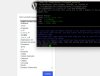
I visited the server in a browser expecting to see to the WordPress language selection as indicated by the guide. However, I see the error message Error establishing a database connection.
As this is a vanilla installation of a prepared server image I am surprised to see this error.
Thanks,
new2litespeed
I am following the LiteSpeed WordPress Quickstart guide but get stuck on step 4. Please see my progress through the guide below. Any help to proceed is appreciated.
Step 1
I launched a WordPress with LiteSpeed Cache (Powered OpenLiteSpeed) Server through the machine image found on AWS.
Version: 5.9
Operation System: Linux/Unix, Ubuntu 20.04 | 64-bit (x86)
Updated: 2/7/22 (American date format)
EC2 instance: t2.nano
Storage: 8GB (GP2 SSD)
[EDIT: now references correct AWS image]
Step 2
I connected to the server by SSH through AWS's cloud console.
Step 3
I followed the interactive script by entering the domain, updating the server and rebooting.
Step 4
I visited the server in a browser expecting to see to the WordPress language selection as indicated by the guide. However, I see the error message Error establishing a database connection.
As this is a vanilla installation of a prepared server image I am surprised to see this error.
Thanks,
new2litespeed
Last edited: